
Utility locates: from request to issued report
Take a request, sketch what you found, and issue a report your client can rely on.
6 min read
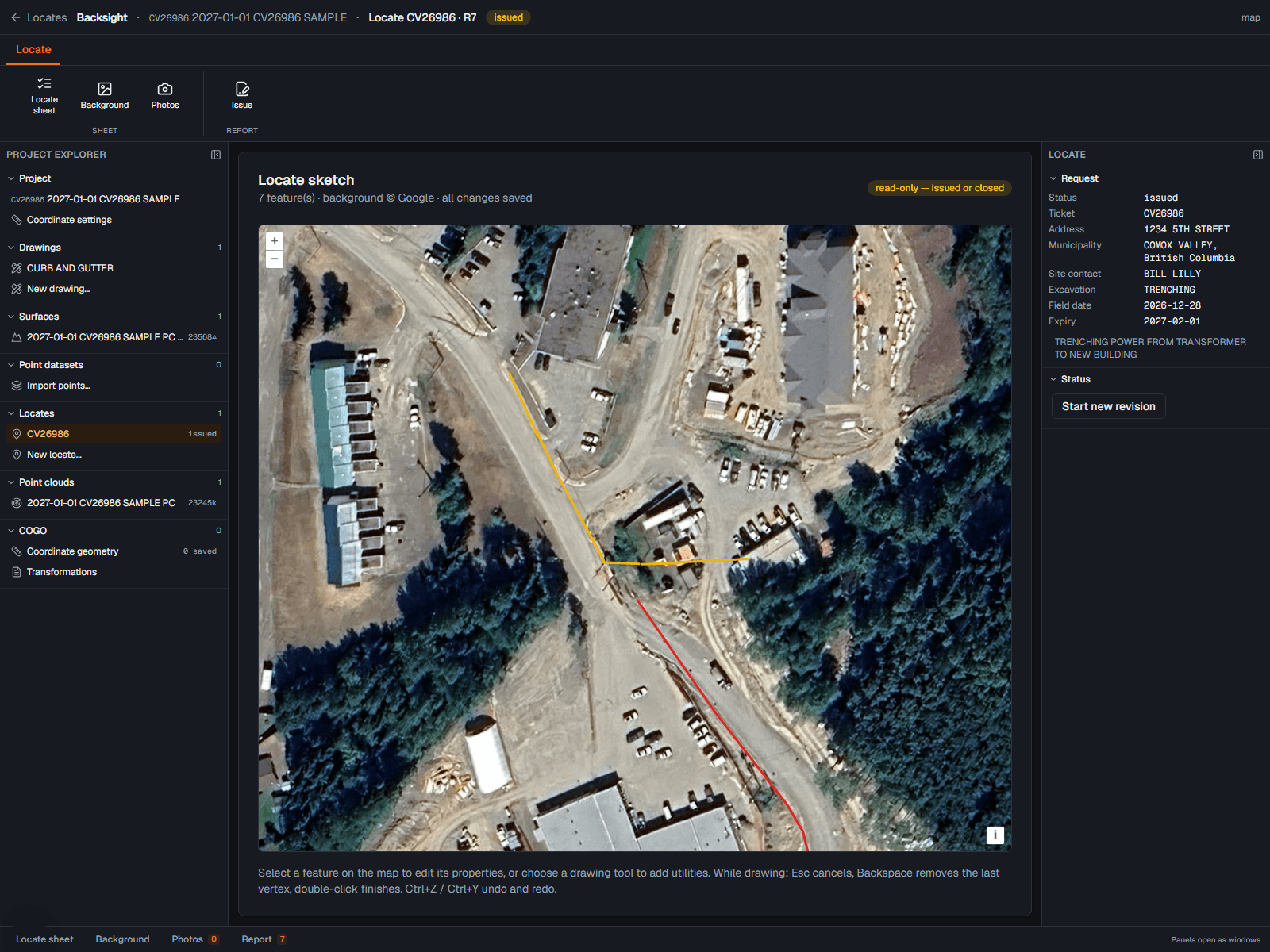
Starting a locate
- Locate mode → New locate.
- Fill in the site, the client, the requested work and the dates.
- The job number comes from your organization's numbering, and you can override it on this one report.
The sketch
- Choose a background: OpenStreetMap, Google Maps, one of the project's orthophotos, or an image you upload.
- Draw the located features in APWA colours, one colour per utility, the way the industry reads them.
- Outline the located area with the white dashed outline tool, then name it with a leader: click where the words go, click what they point at. The words start as LOCATED AREA and can be changed on the selected leader.
- Esc cancels a line in progress; undo and redo behave the way you expect.
- Add photos. They attach immutably to the report.
Note
The sketch is data, not a picture: the geometry keeps its vertices, so it can be edited later rather than redrawn.
The report package
Two sheets, the traditional package:
- A primary locate sheet: the boxed grid, checkbox rows, warnings and located-area bands.
- An auxiliary sheet: legend, north arrow, colour notices and the large sketch.
Every printed field is editable before you issue. Your logo, colours, default disclaimer, limitations and report footer come from your organization's report settings, so they are on every sheet without anybody remembering to add them.
Issuing
- Review the sheets.
- Sign as the locator.
- Issue. The PDF is written, checksummed and versioned.
An issued report is a record
It cannot be edited afterwards. If something changes, issue a revision. It supersedes the last one, and the old link says so rather than quietly changing under somebody who already downloaded it.
Issued before it was ready, and nothing has gone to a client yet? An owner or administrator can reset the revisions from the Report panel: every issued revision goes, with its PDF, share links and download log, and the next report issues as R1. The sketch, photos and details stay. The reset is written to the audit trail with what went.
The client portal
- Clients get a link to the report, no account needed.
- They can acknowledge receipt, which is recorded.
- Every download is logged.
Read next
Something here wrong or missing? Tell us and we will fix it.