
The workspace, part by part
One frame for the whole job: modes, ribbon, explorer, properties, command line and data panels.
5 min read
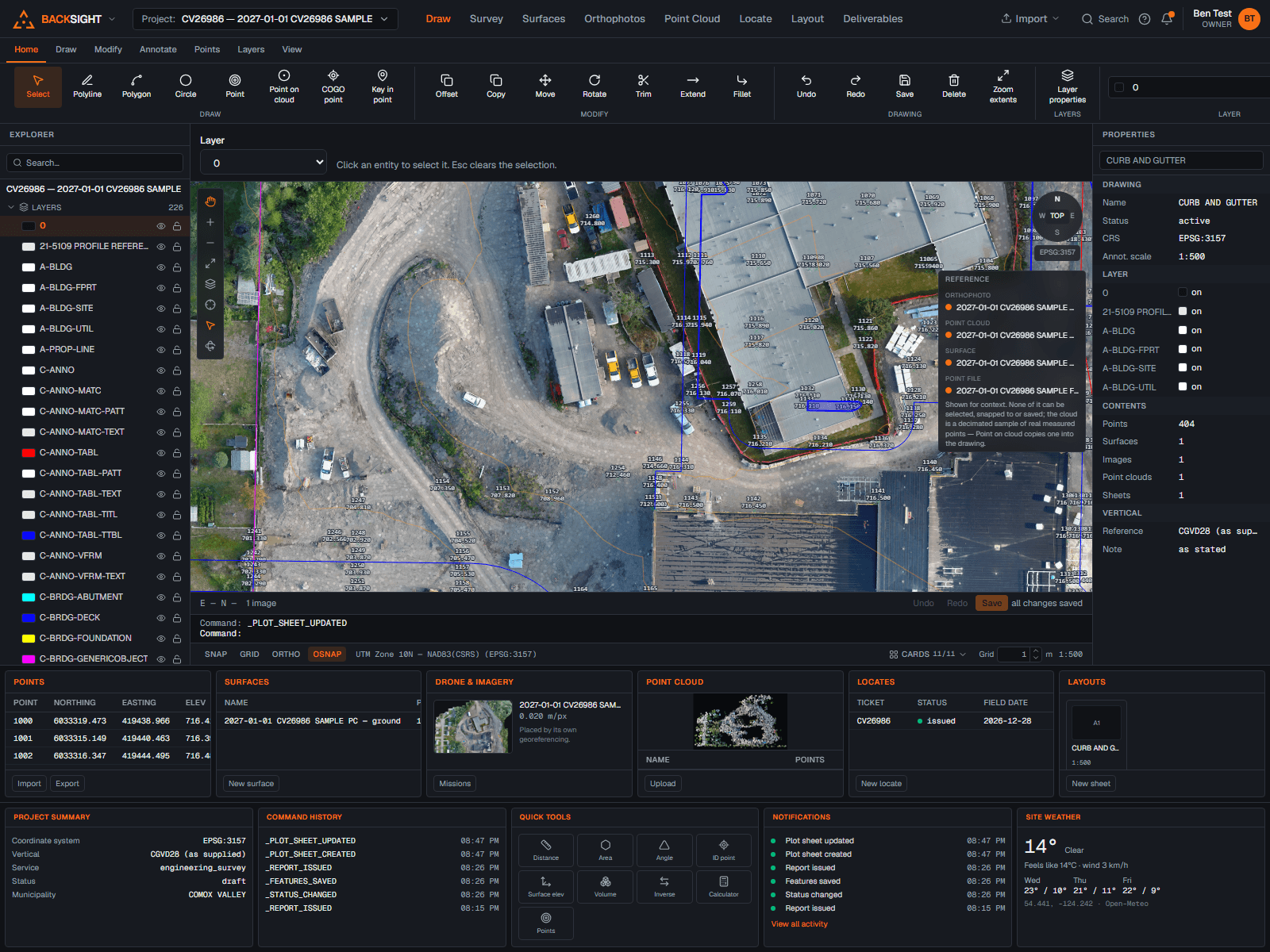
One frame, eight modes
Backsight is one window. The tabs across the top switch what you are doing; the frame around them never moves, so nothing is ever in a different place than it was five minutes ago. Beside the tabs sits Import, the one door for bringing files in, from any mode: survey points, orthophotos, point clouds, DXF and LandXML. A drawing opens on the Draw tab, and only there: a link or a bookmark to a drawing lands in this same window.
| Mode | What you do there |
|---|---|
| Draw | The CAD canvas: draw, modify, annotate, layers |
| Points | Points on a map: import, edit, style, COGO |
| Surfaces | Triangulation, contours, terrain, volumes |
| Drone | Drone flights, orthophotos, background imagery |
| Point Cloud | LAS, LAZ, E57, PLY and XYZ/PTS clouds, classification, ground surfaces |
| Locate | Utility locate sketches and the report package |
| Sheets | Plot sheets, templates and PDFs |
| Deliverables | Everything the project has produced, in one list |
The parts of the screen
- Ribbon (top): the tools for the mode you are in, grouped the way a drafter expects. Anything not built is shown disabled with the reason on hover rather than as a button that does nothing.
- Explorer (left): everything in the project, layers, drawings, point groups, surfaces, images, clouds, locates. Click to open; every import has an eye; hover a row for its downloads, a drawing as DXF or LandXML, a surface as a TIN, an orthophoto as its GeoTIFF, a cloud as LAZ. The Export menu and the Deliverables tab hand out the same files.
- Canvas (middle): the drawing, the map, the cloud or the sheet preview.
- Properties (right): the drawing's summary, coordinate system, layers, contents, vertical reference. Closed until you open it from the strip on the right edge or the CARDS menu, and it stays how you left it. A selected entity's properties open beside it on the canvas.
- Command line (below): type commands, read what happened. Every command reports in words.
- Status bar (bottom): coordinate system, snap and grid toggles, the annotation scale.
- Data panels (bottom, dockable): tables of points, classifications, surfaces, plots. They open as windows and close with Esc. On the Draw tab the drawing's own dock sits above them, Entity manager, Layers, Surfaces, Imagery, Layout, Plot and Import / Export, everything the drawing carries, in one place; the ribbon's Surfaces, Layout, Imagery, Plot and Import / Export tabs open the same windows with a button.
- Drawing switch (Draw tab, above the canvas): which of the project's drawings is open, and the way to another. New drawing… is in the Explorer and the Backsight menu.
Selecting things
- Click an entity to select it.
- Shift+click or Ctrl+click adds and removes from the selection.
- Shift+drag draws a selection box.
- Ctrl+drag draws a freehand lasso, for fencing exactly what you mean.
- Right-click anything for the actions that apply to it, including its properties.
- Esc clears the selection.
Select similar
With one entity selected, Select similar picks up everything else like it, same layer, same kind, which is how you restyle a whole class of linework in one gesture.
Getting around
| Action | How |
|---|---|
| Pan | Press the mouse wheel and drag. The left button never pans: it selects and draws |
| Select many | With the Select tool, drag left to right for a window (everything wholly inside), right to left for a crossing (anything the box touches) |
| Stop a tool | Esc drops whatever is half-drawn and puts the tool down, back to Select |
| Rectangle | Draw → Rectangle: click one corner, then the opposite one. Hold Shift for a square |
| Layers | Right-click a layer in the Explorer to rename, recolour or restyle it; double-click its name for the same |
| Zoom | Wheel, or Z on the command line |
| Zoom to everything | The extents button in the view tools |
| Rotate the view | Click a cardinal on the compass; TOP returns to north-up |
| Undo / redo | Ctrl+Z and Ctrl+Y, or U and REDO typed |
Read next
- Quick start: your first drawing in ten minutesFrom a new account to points on a drawing, a surface, and a plotted PDF, the short version.
- Command referenceEvery command, its alias, and what it does: the list to keep open while you learn.
- Drawing: tools, the command line and snapsHow to draw, how to be quick about it, and how to make things land exactly where you mean.
Something here wrong or missing? Tell us and we will fix it.