
Sheets: setting one up and plotting it
A sheet at a real scale, with a title block, a legend and your logo: then a PDF you can prove.
6 min read
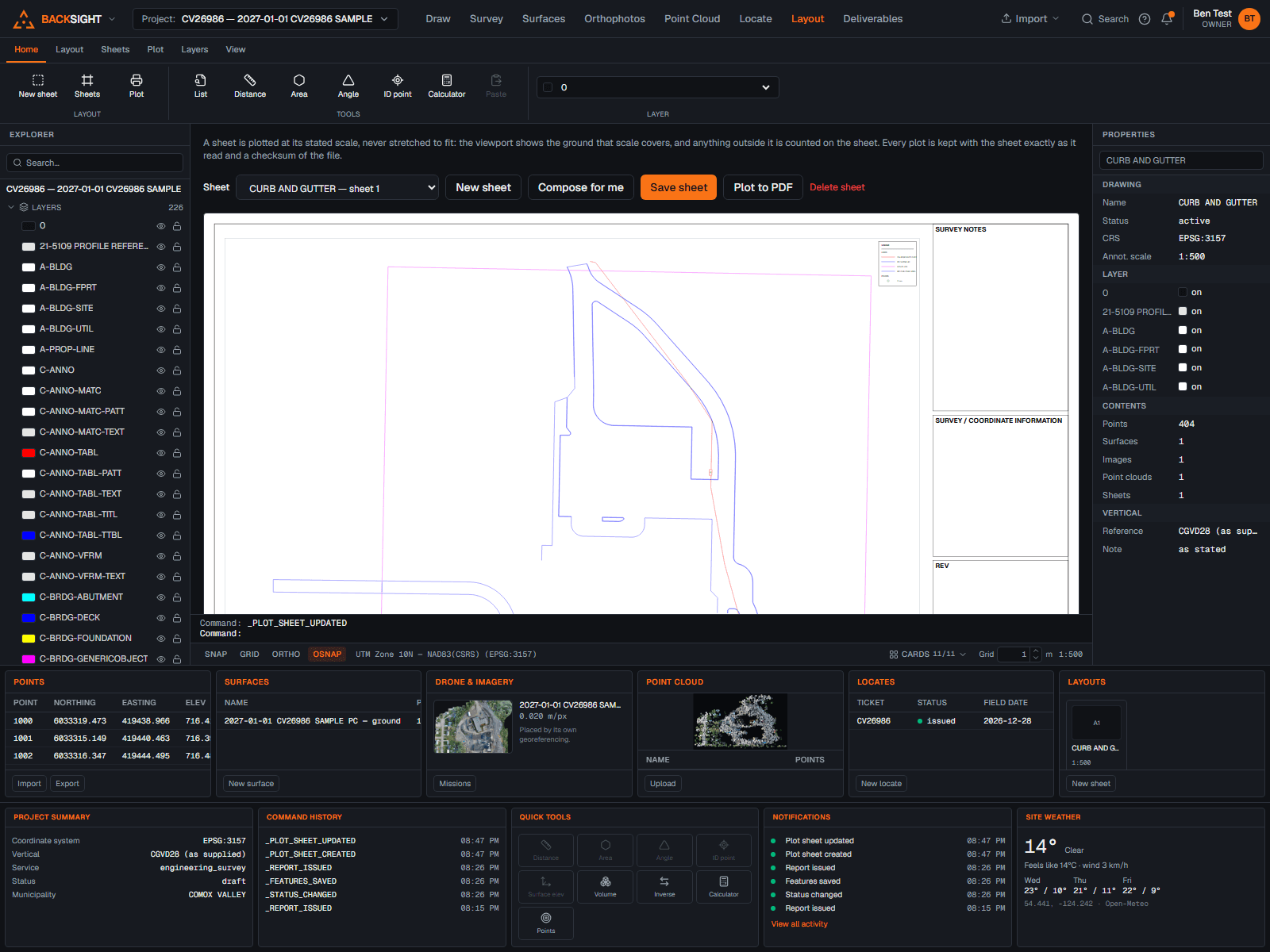
Making a sheet
- Sheets mode → New sheet.
- Choose the page size (A1, A2, A3) and orientation.
- Choose the scale. Backsight states how much ground the viewport covers at that scale before you commit.
- Fill in the title block: drawing title, project, client, project number, drawing number, revision, date, and who surveyed, drew and checked it.
- Create.
The scale is honoured, never fitted
A sheet plots at the scale it states, so it measures with a scale rule. Anything outside the viewport is counted and reported rather than squeezed in.
Compose for me
Compose for me reads the drawing, how dense it is, how much ground it covers, how many points are in it, and sets the scale, the centre, the template and the type sizes to match. Everything it chooses is still yours to change afterwards.
Tip
Your legend and logo choices are kept when you compose. Those are decisions the drawing cannot make for you.
The live preview
The preview shows the sheet at true proportions, the frames, the drawing at its scale, the type at its stated millimetres, the legend and the logo where you put them. Change a size and it moves under your hand, before anything is saved or plotted.
Plotting
- Plot to PDF.
- The file is written and kept with the sheet exactly as it read at the time, plus a checksum.
- Plot again after a change and you get a second, separate document, the first is not replaced.
That is what makes a plot defensible: months later you can show which drawing, at which scale, with which fields, produced the PDF the client has.
Read next
- Sheet templates and your office standardFive compositions to start from, and how to save your own as the default.
- Typography on a sheetFourteen faces, sizes in real millimetres, and a sample of every one as you set it.
- Your logo and a legend on the sheetPut your artwork where you want it, and add a legend that lists only what the drawing uses.
Something here wrong or missing? Tell us and we will fix it.