
Point styles and labels
Choose a symbol, size it in millimetres, and arrange the labels the way your office wants them.
5 min read
The catalogue
Thirty built-in styles grouped as Basic, Survey, Control, Topography and Utilities, iron pin found and set, monuments, benchmarks, spot elevations, hydrants, manholes, poles, valves and the rest. Every picker shows the symbol, not just its name.
Applying a style
- Select the points, in Draw or in Survey, it is the same catalogue either way.
- Choose a style preset in the point display panel.
- Adjust anything you want different: colour, marker, size.
- Everything you change applies to every selected point at once.
Labels
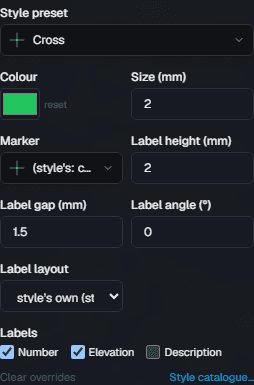
For any point, or any selection of points:
- Which attributes label at all, number, elevation, description.
- Label height, in millimetres on the sheet.
- Label gap, how far off the marker the text sits.
- Label angle, rotation in degrees, counter-clockwise.
- Label layout, stacked, all on one line, or combinations such as number and description together with the elevation below.
Tip
Set these once on a selection of a hundred points rather than one at a time. Everything in the point display panel is a bulk edit when more than one point is selected.
Your own styles
An organization can add its own point styles beside the built-in ones. They appear in every picker, for everybody, and plot the same way, including in a sheet's legend.
Read next
- Description keys: symbols from field codesA shot coded 460 draws as a hydrant before anybody opens a picker. Here is how that works and how to override it.
- Editing points, one or a thousandChange a description, an elevation or how a point looks, for one point or every point you have selected.
- Point style catalogueThe thirty built-in symbols, by group.
Something here wrong or missing? Tell us and we will fix it.